Adding two or more monitors to a laptop can be complicated when its native video outputs are limited. The best docking stations with DisplayLink use USB connectivity and software-based video technology to expand your workspace without requiring a full set of dedicated display ports.
This roundup compares 10 options for Windows laptops and compatible MacBook models, including dual-, triple-, and quad-monitor docks with features such as 4K output, USB-C charging, HDMI and DisplayPort connections, and high-wattage power delivery. Use the guide below to match the dock to your computer, monitor layout, and daily workload.
Best 10 Docking Stations with Displaylink Picks for 2026
Best Budget Dual-HDMI Option
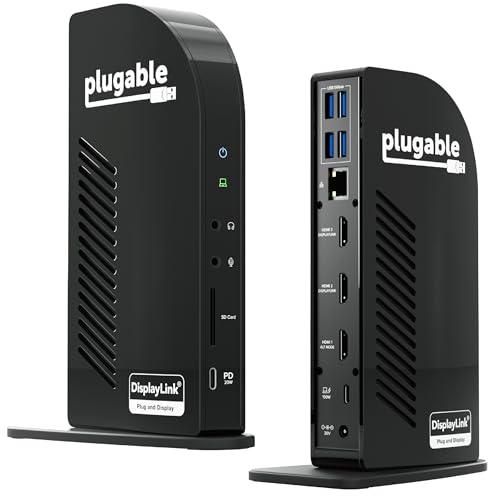
Plugable UD-3900 DisplayLink Dock

- Dual HDMI output up to 1920x1200 at 60Hz
- Six USB ports plus Ethernet and audio
- Two-year coverage with lifetime support
Best For: Basic dual-monitor home-office productivity
Best Mac-Compatible Triple Display Dock
WAVLINK USB-C DisplayLink Dock

- Triple 4K@60Hz monitor support on compatible systems
- Six 10Gbps USB ports and Gigabit Ethernet
- 160W adapter with up to 100W laptop charging
Best For: Mac and Windows multi-monitor productivity setups
Best Quad-Monitor Dock
TobenONE 20-in-1 DisplayLink Dock

- Supports up to four 4K@60Hz displays
- 20 ports for monitors and peripherals
- Up to 100W laptop charging
Best For: Four-monitor professional workstations
Best Triple-Monitor Productivity Dock
WAVLINK 15-in-1 DisplayLink Dock

- Supports up to three external monitors
- Includes 15 ports and fast USB connectivity
- Up to 100W Power Delivery
Best For: Multi-screen office productivity
Best Business-Ready Dock
Plugable USB-C Triple-Monitor Dock
- Supports three extended HDMI displays
- 100W laptop and 20W accessory charging
- 13 ports for office connectivity
Best For: Standardized office and IT deployments
Best for Triple-Screen Workstations
WAVLINK 3-Monitor DisplayLink Dock

- Up to 4K plus two 2K displays
- 100W laptop charging with 130W adapter
- Six 10Gbps USB ports and Gigabit Ethernet
Best For: Three-monitor home offices and productivity workstations
Best Compact Hub for Basic Expansion
Giq Dual-HDMI DisplayLink Dock

- Compact design for travel and small desks
- Dual HDMI, USB 3.0, Ethernet, and card readers
- USB-C port does not charge the laptop
Best For: Portable everyday connectivity and basic dual-display setups
Best for Dual 4K Productivity

- Two 4K 60Hz monitor support
- HDMI and DisplayPort connection flexibility
- Six USB 3.0 ports plus Gigabit Ethernet
Best For: Dual-monitor home offices without laptop charging needs
Best for Maximum Port Expansion – TobenONE Triple/Quad DisplayLink Dock
If you need one of the most capable docking stations with DisplayLink for a multi-monitor workstation, the TobenONE combines 18 ports with extensive display support. It can drive up to four 4K displays on compatible Windows systems and up to three on macOS, while also providing fast USB connectivity, Ethernet, and substantial laptop charging.
Best For: Stock trading, content creation, software development, and professional office setups that need several displays and peripherals.
Pros:
- Supports triple or quad 4K@60Hz displays, depending on the operating system and host capabilities.
- Includes 18 ports, with six display outputs, USB ports up to 10Gbps, and Gigabit Ethernet.
- Includes a 120W adapter and provides up to 100W laptop charging plus 18W front USB-C charging.
- Works with Thunderbolt, USB4, and full-featured USB-C systems running supported operating systems.
Cons:
- Requires DisplayLink drivers; macOS also requires Screen Recording permission.
- Does not support Linux or Unix systems.
- Designed for productivity rather than high-refresh-rate gaming.
The TobenONE is a strong choice when display count and port variety matter more than simplicity. Confirm that your laptop supports the required USB-C video and power features before buying, and plan for driver installation.
Best Budget Dual-HDMI Option – Plugable UD-3900 DisplayLink Dock
The Plugable UD-3900 is a straightforward option among docking stations with DisplayLink for expanding a laptop into a dual-monitor productivity setup. Its hybrid USB 3.0/USB-C connection adds two HDMI outputs, wired Gigabit Ethernet, audio, and six USB ports, though it is limited to HD-class resolutions and does not charge the host laptop.
Best For: Home offices and everyday productivity users who need two HDMI monitors and extra USB connectivity.
Pros:
- Supports two HDMI displays up to 1920×1200 at 60Hz.
- Provides Gigabit Ethernet, headphone and microphone connections, and six USB ports.
- Works with supported Windows, macOS, and ChromeOS systems after the required setup.
- Includes two-year coverage and lifetime support.
Cons:
- Does not support 4K or DisplayPort connections.
- Does not charge the connected laptop.
- Not intended for gaming or HDCP-protected streaming services.
This dock makes sense for a basic dual-screen desk where affordability and familiar HDMI connectivity are more important than 4K output or laptop power delivery. It is less suitable for demanding media or gaming setups.
Best Premium Windows Dock – Anker Prime DL7400 Triple Display
The Anker Prime DL7400 is a premium choice among docking stations with DisplayLink for Windows users who want triple 4K displays, fast connectivity, and high charging capacity. Its 14-in-1 design adds 2.5Gbps Ethernet, card readers, multiple 10Gbps USB-C ports, and a smart display for monitoring dock status.
Best For: Windows professionals who want a high-end triple-monitor workstation with fast storage connectivity and strong power delivery.
Pros:
- Supports three external 4K displays through two HDMI ports and one DisplayPort.
- Offers a 140W upstream power capability and up to 100W charging from the front USB-C ports.
- Includes 2.5Gbps Ethernet, SD and TF card slots, and several high-speed USB ports.
- Built-in fan, ActiveShield 3.0, and smart status display support temperature and performance management.
Cons:
- Designed for Windows 10/11 and requires the latest DisplayLink driver.
- Front USB-C ports do not support video output for USB-C or Thunderbolt monitors.
- DRM-protected streaming may show a black screen because of DisplayLink limitations.
The DL7400 is compelling for a feature-rich Windows desk that needs displays, networking, removable storage, and charging from one hub. Its Windows-only compatibility and streaming limitations should be checked before purchase.
Best Mac-Compatible Triple Display Dock – WAVLINK USB-C DisplayLink Dock
The WAVLINK USB-C dock is a versatile option among docking stations with DisplayLink for users who need multiple 4K displays across supported Mac, Windows, and ChromeOS setups. It combines triple-monitor support with six 10Gbps USB ports, Gigabit Ethernet, audio, and up to 100W laptop charging through a 160W power adapter.
Best For: Mac and Windows users building a multi-monitor productivity setup with fast USB peripherals and laptop charging.
Pros:
- Supports up to three 4K@60Hz monitors when the laptop and connections meet the required conditions.
- Includes six USB Gen2 ports rated for up to 10Gbps and Gigabit Ethernet.
- Provides up to 100W host charging with the included 160W power adapter.
- Supports a broad range of Mac, Windows, ChromeOS, Ubuntu, Android, and Harmony OS systems with driver setup.
Cons:
- The HDMI Alt Mode output requires a USB-C port with video output support.
- DisplayLink drivers must be installed before use.
- Does not support Unix, Linux, or iPadOS according to the supplied compatibility notes.
This WAVLINK model offers a practical balance of display expansion, charging, and high-speed ports for a mixed-device office. Verify your laptop’s USB-C video and Power Delivery support, especially when planning three displays.
Best Quad-Monitor Dock – TobenONE 20-in-1 DisplayLink Dock
For users comparing docking stations with displaylink support, the TobenONE is built for demanding multi-monitor workspaces. It combines four HDMI ports, four DisplayPort ports, extensive USB connectivity, card readers, Ethernet, audio, and up to 100W laptop charging in one dock.
Best For: Professionals who need four external displays and a broad selection of high-speed peripheral connections.
Pros:
- Supports up to four 4K@60Hz external monitors; M1 MacBooks support up to three.
- Offers 20 ports, including HDMI, DisplayPort, USB, SD/microSD, Ethernet, and audio.
- Provides up to 100W laptop charging and includes a power button for connected devices.
- Supports Windows, macOS, ChromeOS, Ubuntu, Android, and Thunderbolt or USB-C systems.
Cons:
- DisplayLink drivers must be installed before use.
- HDCP is not supported.
- Four-display operation has platform-specific limitations on some MacBooks.
The TobenONE stands out when maximum display count and port variety matter most. Its driver requirement and HDCP limitation are important trade-offs, but the 4K quad-monitor capability and 100W charging make it a strong fit for complex productivity setups.
Best Triple-Monitor Productivity Dock – WAVLINK 15-in-1 DisplayLink Dock
The WAVLINK is a practical choice among docking stations with displaylink for office multitasking. Its 15-in-1 design combines three HDMI ports, two DisplayPort connections, fast USB ports, card readers, Ethernet, audio, and up to 100W Power Delivery.
Best For: Office users handling spreadsheets, dashboards, reports, web applications, and other productivity-focused workflows across multiple monitors.
Pros:
- Supports triple-monitor setups on compatible Windows and Mac laptops.
- Includes three HDMI ports, two DisplayPort ports, five USB ports, Ethernet, SD/TF, and audio.
- Delivers up to dual 2K@60Hz through specified HDMI/DisplayPort channels.
- Provides up to 100W laptop charging with a 130W power adapter.
Cons:
- DisplayLink driver installation is required; it is not plug-and-play.
- Designed primarily for productivity rather than gaming or professional video editing.
- HDMI and DisplayPort on the same display channel cannot be used simultaneously.
Choose the WAVLINK when you want broad connectivity and a three-monitor office setup without prioritizing gaming performance. Check your laptop’s USB-C video and Power Delivery support before buying, and plan for the required DisplayLink software installation.
Best Business-Ready Dock – Plugable USB-C Triple-Monitor Dock
The Plugable USB-C dock is a streamlined option for buyers seeking docking stations with displaylink support and standardized desktop connectivity. It supports three extended HDMI displays, 100W laptop charging, 20W accessory charging, USB ports, SD, Ethernet, and audio.
Best For: Home offices, schools, government environments, and IT deployments that need a consistent triple-monitor USB-C setup.
Pros:
- Supports three extended HDMI displays, including multi-monitor expansion on supported Macs.
- Provides up to 100W laptop charging and 20W charging for phones or accessories.
- Includes 13 ports with HDMI, USB-A, USB-C, SD, Gigabit Ethernet, and audio.
- Offers compatibility with Windows 10+, macOS 11+, ChromeOS, USB-C, USB4, and Thunderbolt systems.
Cons:
- DisplayLink Manager or other driver installation is required for multiple displays on macOS.
- HDMI output is limited to 4K 30Hz on HDMI 1 and 1920×1200 60Hz on HDMI 2 and 3.
- Does not support protected-content playback such as Netflix or Hulu.
The Plugable is a sensible choice for standardized business and home-office deployments, especially when charging and reliable everyday connectivity matter. Its display resolutions are more modest than some newer high-end docks, so confirm they match your monitor requirements.
Best for Triple-Screen Workstations – WAVLINK 3-Monitor DisplayLink Dock
If you need docking stations with displaylink support for a demanding home-office setup, this WAVLINK model is built around three external displays. It supports up to 4K at 60Hz plus two 2K displays, while adding 100W laptop charging, 10Gbps USB ports, and Gigabit Ethernet.
Best For: Home-office professionals, coders, traders, online learners, and mixed-device workstations that need three monitors.
Pros:
- Supports up to three displays: 4K 60Hz plus two 2K 60Hz outputs.
- Provides 100W Power Delivery through one USB-C connection and includes a 130W adapter.
- Offers six USB ports with individual 10Gbps transfer support.
- Works with many USB-C, USB4, and Thunderbolt 3/4 laptops, including M1-M5 Macs.
Cons:
- MacBook M1-M5 users must install the DisplayLink driver, and the USB-C port must support video output.
- It does not support USB-A-only laptops or gaming consoles.
- It is not recommended for gaming or HDCP-protected 4K streaming.
This is the most capable option here for expanding a compatible laptop into a three-screen workstation. Its charging, networking, and high-speed USB features also make it practical for long workdays, though buyers should verify USB-C video support and DisplayLink compatibility first.
Best Compact Hub for Basic Expansion – Giq Dual-HDMI DisplayLink Dock
For shoppers seeking compact docking stations with displaylink functionality, this Giq hub combines dual HDMI expansion with everyday connectivity. It includes USB 3.0 ports, Gigabit Ethernet, SD and microSD readers, and a USB-C port intended for charging connected devices rather than charging the laptop.
Best For: Travelers, students, and laptop users who want a small hub for displays, peripherals, wired networking, and memory cards.
Pros:
- Compact 2-by-2-by-0.59-inch design suited to travel and small desks.
- Includes two HDMI outputs, three USB 3.0 ports, Gigabit Ethernet, and card readers.
- USB 3.0 supports transfer rates up to 5Gbps.
- Lists compatibility with Windows, macOS, Chrome OS, Ubuntu, and Android systems.
Cons:
- The USB-C port is for charging connected devices and does not charge the laptop.
- SD and microSD cards cannot be used simultaneously.
- Video output is listed up to UHD 30Hz or Full HD 1080p, so it is less suited to high-refresh displays.
This Giq model prioritizes portability and a broad selection of everyday ports over high-end workstation performance. It is a sensible fit for basic dual-display expansion and travel, provided you do not need laptop charging or simultaneous use of both card slots.
Best for Dual 4K Productivity – WAVLINK Dual-DisplayLink Dock
This WAVLINK dock is a practical choice among docking stations with displaylink for users who want two 4K monitors from a single USB connection. Its HDMI and DisplayPort combinations support flexible setups, while six USB 3.0 ports, Gigabit Ethernet, and audio cover common home-office needs.
Best For: Remote workers and office users building a dual-monitor productivity setup with USB-A, USB-C, or Thunderbolt laptops.
Pros:
- Supports up to two external monitors at 4K 60Hz on compatible systems.
- Offers two HDMI and two DisplayPort outputs for flexible monitor combinations.
- Works with USB-A, USB-C, USB4, and Thunderbolt 3, 4, and 5 laptops.
- Includes six USB 3.0 ports, Gigabit Ethernet, and a 3.5mm audio jack.
Cons:
- It does not provide laptop charging.
- DisplayLink driver installation is required for video output.
- It is not compatible with Linux and is not designed for gaming, high-frame-rate editing, or DRM-protected streaming.
Choose this model when dual 4K productivity and broad laptop-port compatibility matter more than charging. It provides a useful mix of display flexibility and peripheral connectivity, but the lack of Power Delivery means your laptop charger remains part of the desk setup.
How We Picked the Best Docking Stations with Displaylink
We focused on docks that clearly support DisplayLink-based multi-monitor expansion and cover a broad range of laptop setups. The selection includes USB 3.0 and USB-C models, dual- through quad-display configurations, and products with different charging capacities and port layouts.
We also considered practical factors such as stated resolution and refresh-rate support, monitor connector flexibility, compatibility with Windows and Apple silicon Macs, included power adapters, USB expansion, and the number of displays each dock is designed to run. Before buying, confirm the manufacturer’s current compatibility list and required DisplayLink software for your operating system.
Quick Comparison
| Best For | Look For |
|---|---|
| Basic dual-monitor desk | USB 3.0 or USB-C dock with two HDMI outputs |
| Triple-monitor productivity | DisplayLink support, three video outputs, and adequate host bandwidth |
| MacBook multi-display setups | Explicit support for your exact M-series Mac and current DisplayLink Manager version |
| High-power laptop charging | 100W or higher power delivery, plus a sufficiently powerful included adapter |
| Flexible monitor connections | A mix of HDMI and DisplayPort outputs or compatible adapters |
Key Buying Factors for Docking Stations with Displaylink
Display Count and Resolution
Choose a dock based on the number of independent screens you actually need. Dual-display models are usually simpler and more affordable, while triple- and quad-monitor docks suit trading, data analysis, creative timelines, and large office workflows. Check whether the advertised 4K resolution applies to every output simultaneously or only selected ports.
Computer and Operating-System Compatibility
DisplayLink docks require software, so compatibility matters as much as physical connectors. Windows support is common, but MacBook behavior can vary by chip generation and macOS version. Apple silicon models may require permission changes or specific DisplayLink Manager releases. Also verify that your laptop’s USB port supports the data rate and charging behavior you expect.
Power Delivery and Desk Connectivity
A high-wattage dock can reduce cable clutter, but its stated charging figure may not equal the power available after the dock’s own requirements. Match the dock to your laptop’s charger specifications. Count the USB-A and USB-C ports, Ethernet, audio, card readers, and other connections you will use regularly.
Performance Expectations
DisplayLink is convenient for office work, browsing, documents, and static dashboards, but it is not identical to a native GPU connection. Fast gaming, color-critical production, and high-frame-rate video work may benefit from direct display outputs instead. A wired network connection and modern USB host port can also improve the overall experience.
Who Should Buy Which Docking Stations with Displaylink?
Choose a dual-monitor dock if you want a straightforward home-office setup or need to add one or two screens without paying for unused capacity. Choose a triple-monitor model for a balanced productivity workstation with room for email, documents, communication apps, and reference material. Choose a quad-monitor dock only if you have a clear need for four screens and your laptop, operating system, and monitors are fully supported.
For MacBook owners, prioritize products that explicitly list your M-series generation rather than relying on generic compatibility claims. For demanding laptops, select a dock with appropriate power delivery and use the included adapter when possible. If you need gaming-grade latency or professional uncompressed video performance, compare DisplayLink against a Thunderbolt or native USB-C dock before deciding.