If you spend your day juggling spreadsheets, chat windows, documents, and video calls, the right display can make a huge difference. A good computer monitor for multitasking gives you more usable space, cleaner text, and less switching between apps.
Below, we’ve narrowed the field to 10 strong options, from expansive ultrawide models to practical budget picks, so you can match screen size, resolution, and features to the way you work.
Best 10 Computer Monitor for Multitasking Picks for 2026
Panoramic Productivity Pick
Samsung 49” Curved Ultrawide Business Monitor

- 49-inch 32:9 Dual QHD for huge workspace
- USB-C hub with up to 90W charging
- 120Hz panel with built-in speakers
Best For: Business users and power multitaskers who want a monitor-dock combo
Balanced Multitasking Choice
LG 34” UltraWide WQHD Curved Monitor

- 34-inch 21:9 WQHD screen for split work
- Picture-by-Picture supports two sources
- USB-C offers up to 65W power delivery
Best For: Work-from-home users and laptop owners who want a practical ultrawide
Comfort-Focused Productivity Pick
Dell 34 Plus USB-C Curved Monitor

- 34-inch ultrawide WQHD for multitasking
- ComfortView Plus helps reduce blue light
- USB-C supplies up to 65W charging
Best For: Office users who want a comfortable ultrawide for long workdays
Ultrawide White Workhorse
CRUA 34 Inch 21:9 UWQHD Curved Monitor

- 3440×1440 ultrawide workspace for side-by-side windows
- IPS panel with wide color coverage and 178° viewing
- 100Hz refresh with FreeSync for smoother everyday motion
Best For: Multitaskers who want a wide, immersive ultrawide monitor
Office Focus Pro
Samsung 34" ViewFinity S50GC Ultra-WQHD

- 34-inch 21:9 Ultra-WQHD panel for spacious multitasking
- PBP and PIP support two sources on one display
- Eye Saver Mode, Flicker Free, and ambient sensor reduce strain
Best For: Office users who want split-screen tools and eye comfort
Desk-Friendly Multitasker
LG 34U530A-W UltraWide WFHD Monitor
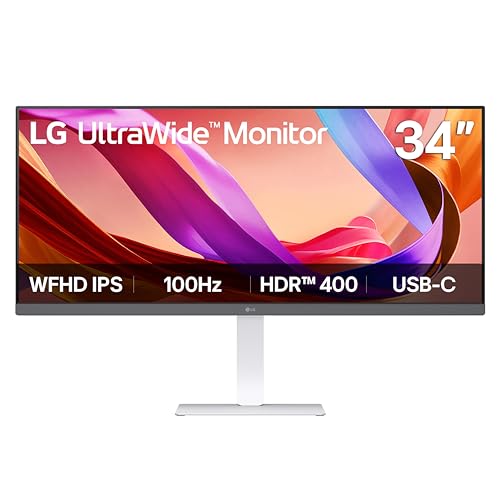
- 34-inch 21:9 ultrawide design for more workspace
- USB-C, HDMI, and DisplayPort keep connections simple
- Height, tilt, and swivel stand support comfortable use
Best For: Laptop and home office setups that need a flexible ultrawide
Ultrawide Productivity Pick
Sceptre 34-Inch Curved Ultrawide WQHD Monitor

- 3440 x 1440 WQHD resolution for a roomy desktop
- 21:9 ultrawide format adds about 30% more screen space
- 1ms MPRT and up to 165Hz refresh rate for smooth visuals
Best For: A spacious single-screen setup for work, editing, and gaming
Budget Desk Upgrade
Philips 27" FHD 100Hz VA Monitor

- 27-inch display gives comfortable room for office multitasking
- 100Hz refresh rate with Adaptive-Sync for smoother motion
- Three-sided bezel-free design suits multi-monitor desks
Best For: Everyday productivity and future dual-monitor setups
Compact Workspace Choice
Philips 22 Inch FHD 100Hz VA Monitor

- Compact 21.5-inch viewable size for smaller desks
- Full HD resolution for everyday productivity tasks
- 100Hz refresh rate with Adaptive-Sync support
Best For: Small desks and compact secondary-monitor use
Panoramic Productivity Pick – Samsung 49” Curved Ultrawide Business Monitor
If you want a computer monitor for multitasking that behaves more like two screens in one, this 49-inch Samsung ultrawide is built for the job. The 32:9 Dual QHD panel gives you a huge workspace for side-by-side windows, while USB-C with 90W charging helps keep laptop setups clean and simple.
Best For: Business users, creators, and anyone who wants maximum screen space with a single-cable desk setup.
Pros:
- 49-inch 1000R curved 32:9 display is ideal for wide multitasking layouts.
- USB-C, HDMI, DisplayPort, and USB hub features reduce desk clutter.
- 120Hz refresh rate makes scrolling and general motion feel smoother.
- Built-in speakers and height-adjustable stand add convenience.
Cons:
- Large footprint may be too much for smaller desks.
- Its ultra-wide format may not suit everyone’s workflow.
This is a strong pick if your day revolves around spreadsheets, dashboards, document stacks, or creative timelines. It focuses on productivity first, but still adds enough polish in connectivity and motion to stay versatile.
Smart Workspace Upgrade – Samsung 43” M7 4K Smart Monitor
This Samsung M7 is a flexible computer monitor for multitasking if you want a large 4K screen that also doubles as a smart display. Its 43-inch size gives you plenty of room for work windows, while USB-C, HDMI, USB-A, Wi-Fi, and Bluetooth make it easy to connect a laptop and extra devices.
Best For: Users who want a big 4K monitor plus streaming, smart home, and wireless convenience in one screen.
Pros:
- 43-inch 4K UHD panel delivers sharp detail for work and media.
- USB-C, HDMI, USB-A, Wi-Fi, and Bluetooth offer broad connectivity.
- AI Picture Optimizer and HDR10 help adapt visuals to different uses.
- Samsung Knox adds security for monitor and IoT use.
Cons:
- 60Hz refresh rate is less suited to fast-paced motion.
- Its smart features may be unnecessary if you only want a basic work monitor.
If you want one large display that can handle documents, entertainment, and connected-device convenience, this model fits that brief well. It is less specialized for pure productivity than an ultrawide, but it brings more versatility to a mixed-use setup.
Balanced Multitasking Choice – LG 34” UltraWide WQHD Curved Monitor
For a computer monitor for multitasking that keeps things practical, this LG 34-inch UltraWide gives you a wide 21:9 workspace without jumping to the extreme size of a 49-inch panel. The 3440 x 1440 resolution, Picture-by-Picture support, and USB-C connectivity make it easy to run multiple windows or even two sources on one screen.
Best For: Users who want a roomy ultrawide for work, split-screen use, and laptop connectivity.
Pros:
- 21:9 WQHD layout is well suited for multiple windows on one screen.
- Picture-by-Picture supports content from two input sources at once.
- USB-C with up to 65W power delivery simplifies laptop setups.
- Height and tilt adjustment improve ergonomic comfort.
Cons:
- It is a 100Hz monitor, but not as fast as some gaming-oriented options.
- Ultrawide format may require workflow adjustments for some users.
This model lands in a very usable middle ground: big enough to boost productivity, but not so large that it dominates the desk. The built-in split-screen tools and strong connectivity make it especially practical for mixed office and home use.
Comfort-Focused Productivity Pick – Dell 34 Plus USB-C Curved Monitor
The Dell S3425DW is a strong computer monitor for multitasking if you care about comfort as much as screen space. Its 34-inch WQHD ultrawide format gives you room for multiple windows, while USB-C with up to 65W power delivery helps keep a single-cable setup tidy.
Best For: Professionals who want an ultrawide work monitor with eye comfort features and simple connectivity.
Pros:
- 34-inch 21:9 WQHD screen is well suited to side-by-side work.
- Improved ComfortView Plus reduces blue light emissions for long sessions.
- USB-C with up to 65W power delivery keeps desks cleaner.
- 120Hz refresh rate and 0.03ms response time make motion feel smooth.
Cons:
- Its strengths lean more toward comfort and everyday work than specialized features.
- VA panel behavior may not appeal to users seeking IPS-style viewing characteristics.
This Dell makes a lot of sense if your monitor is part of an all-day workstation. It combines a useful ultrawide shape with eye comfort and straightforward connectivity, which is exactly what many multitaskers need.
Ultrawide White Workhorse – CRUA 34 Inch 21:9 UWQHD Curved Monitor
If you want a computer monitor for multitasking that gives you a lot more room to work, this 34-inch 21:9 ultrawide from CRUA is built for exactly that. The 3440×1440 resolution creates enough horizontal space to keep spreadsheets, timelines, documents, or browser windows open side by side, while the IPS panel helps colors stay consistent across the screen. The 100Hz refresh rate and curved design also make everyday use feel smooth and comfortable.
Best For: Users who want a wide, immersive screen for work-from-home setups, editing, and everyday multitasking.
Pros:
- 34-inch 21:9 UWQHD panel provides lots of space for multiple windows.
- IPS display with 120% sRGB and 92% DCI-P3 for vivid, consistent color.
- 100Hz refresh rate with AMD FreeSync for smoother scrolling and playback.
- Built-in speakers plus HDMI and DisplayPort inputs help keep the desk setup simple.
Cons:
- 34-inch ultrawide size may be too large for compact desks.
- Contrast ratio and brightness are solid, but not aimed at premium HDR use.
- Curved layout may take some adjustment if you prefer a flat panel.
Overall, this CRUA model is a practical ultrawide pick if your priority is spreading work out across one seamless screen. It combines useful productivity space with good color, decent motion handling, and a clean white finish.
Office Focus Pro – Samsung 34" ViewFinity S50GC Ultra-WQHD
The Samsung ViewFinity S50GC is a strong computer monitor for multitasking when you want a clean ultrawide workspace with office-friendly features. Its 34-inch 21:9 Ultra-WQHD panel gives you room to compare documents, run two programs, or use picture-in-picture and picture-by-picture modes on one screen. The borderless design and eye-care features make it a sensible choice for long work sessions.
Best For: Productivity-focused users who want a polished ultrawide monitor for office work and split-screen workflows.
Pros:
- 21:9 Ultra-WQHD screen makes multitasking feel more seamless.
- PBP and PIP support let you view two sources at once.
- Eye Saver Mode, Flicker Free, and ambient light sensing help reduce strain.
- 100Hz refresh rate keeps scrolling and general use smooth.
Cons:
- 3,000:1 contrast is good, but brightness is listed at 300 cd/㎡.
- Stand adjustment details are limited compared with some competing models.
- Best suited to desktop use, since the notes focus on a standard office setup.
For users who care more about productivity features than flashy extras, this Samsung monitor is easy to recommend. It pairs ultrawide screen space with split-screen tools and eye comfort features that suit long days at the desk.
Desk-Friendly Multitasker – LG 34U530A-W UltraWide WFHD Monitor
If you’re looking for a computer monitor for multitasking that fits a more compact workspace, the LG 34U530A-W makes a strong case. It still gives you a 34-inch 21:9 ultrawide layout, but with a 2560×1080 resolution that keeps the price and setup more approachable than higher-resolution options. USB-C, HDMI, and DisplayPort connectivity make it especially convenient for laptop users who want a cleaner desk.
Best For: Laptop and home office users who want an ultrawide screen with simple USB-C connectivity and flexible stand adjustment.
Pros:
- 21:9 UltraWide WFHD format gives extra horizontal room for multitasking.
- USB-C, DisplayPort, and HDMI support easy laptop and desktop connections.
- Height, tilt, and swivel adjustments help dial in a comfortable setup.
- Built-in speakers and the Switch app add convenience for everyday use.
Cons:
- 2560×1080 resolution is lower than 3440×1440 ultrawide models.
- Single HDMI port may limit flexibility for some desk setups.
- Very demanding creators may prefer a sharper panel for detailed work.
This LG model is a practical balance of size, features, and desk comfort. It’s a good fit if you want ultrawide multitasking without stepping up to a more expensive high-resolution display.
Ultrawide Productivity Pick – Sceptre 34-Inch Curved Ultrawide WQHD Monitor
If you’re shopping for a computer monitor for multitasking, this 34-inch curved ultrawide is built to give you more room to work. Its 3440 x 1440 WQHD resolution and 21:9 aspect ratio create a wide desktop that can handle side-by-side windows, large timelines, and extra spreadsheets without feeling cramped.
Best For: Users who want a spacious ultrawide workspace for business tasks, photo/video editing, and casual gaming.
Pros:
- 21:9 ultrawide layout provides about 30% more screen space than a conventional monitor.
- 3440 x 1440 WQHD resolution gives sharper detail than 1080p for productivity work.
- Built-in 1ms MPRT and up to 165Hz refresh rate add smooth motion for gaming and fast-moving content.
- 99% sRGB coverage and a VA panel support detailed visuals and broad color performance.
Cons:
- Large 34-inch curved design needs substantial desk space.
- At 280 cd/m brightness, it may not be the brightest option in very well-lit rooms.
This Sceptre model is the strongest multitasking choice in this group because the ultrawide format naturally reduces the need for a second monitor. It is especially appealing if you want a single display that can handle work and entertainment in one setup.
Budget Desk Upgrade – Philips 27" FHD 100Hz VA Monitor
This Philips 27-inch computer monitor for multitasking is a practical pick if you want a simple, roomy display without moving into ultrawide pricing. The Full HD 1920 x 1080 panel gives you enough space for documents, browser tabs, and office apps, while the nearly bezel-free design makes it easier to use in a dual-monitor setup.
Best For: Everyday office work, shared productivity setups, and users who may expand to multiple monitors later.
Pros:
- 27-inch screen offers a comfortable workspace for side-by-side windows and documents.
- 100Hz refresh rate and Adaptive-Sync help keep motion smooth.
- VA panel delivers deeper blacks and strong contrast for general-use clarity.
- Three-sided bezel-free design works well for multi-monitor arrangements.
Cons:
- 1080p resolution on a 27-inch panel is less detailed than higher-resolution options.
- Not as expansive as an ultrawide if you want maximum workspace on one screen.
This model makes sense if you want a straightforward computer monitor for multitasking and value a larger screen over extra resolution. It is a balanced choice for office tasks, streaming, and building a clean dual-display desk.
Compact Workspace Choice – Philips 22 Inch FHD 100Hz VA Monitor
If your desk is tight, this 22-inch computer monitor for multitasking offers a compact way to stay productive. It still delivers Full HD 1920 x 1080 resolution, a VA panel, and a 100Hz refresh rate, so it can handle daily work, web browsing, and light gaming without taking over your space.
Best For: Small desks, basic office use, and users who want a compact secondary monitor.
Pros:
- Compact 21.5-inch viewable size fits easily on smaller desks.
- Full HD resolution keeps text and windows sharp for everyday tasks.
- 100Hz refresh rate and Adaptive-Sync support smoother scrolling and motion.
- Low 22-watt power consumption makes it efficient for long work sessions.
Cons:
- Smaller screen offers less room for side-by-side multitasking than larger monitors.
- 1080p resolution is practical, but not as spacious as higher-resolution displays.
This Philips monitor is a smart pick when desk space matters more than sheer screen size. It works especially well as a secondary display or for users who want a compact, dependable monitor for everyday multitasking.
How We Picked the Best Computer Monitor for Multitasking
We focused on displays that make daily work easier: wide formats for side-by-side windows, enough resolution for sharp text, and connectivity that fits modern laptops and desktops. We also considered refresh rate, eye-comfort features, USB-C support, built-in speakers, and extras like Picture-in-Picture or Picture-by-Picture for more flexible workflows.
Quick Comparison
Ultrawide models are the best fit if you routinely keep multiple apps open at once. The 34-inch and 49-inch options offer the most horizontal space, while 27-inch and 22-inch monitors are better for smaller desks, secondary screens, or straightforward office use. USB-C-equipped models are especially convenient for laptop users who want a single-cable setup.
Key Buying Factors for a Computer Monitor for Multitasking
Screen Size and Aspect Ratio
For multitasking, wider is usually better. A 34-inch ultrawide can comfortably hold two windows side by side, while a 49-inch super-ultrawide can replace a dual-monitor setup. Standard 27-inch screens still work well for everyday office tasks, especially when paired with split-screen software.
Resolution and Text Clarity
Resolution matters as much as size. Look for WQHD, UWQHD, or 4K if you want crisp text and enough workspace for multiple applications. Lower-resolution ultrawides can still be useful, but text and window density may feel less refined on larger panels.
Connectivity and Workflow Features
For a Computer Monitor for Multitasking, USB-C can simplify docking and charging for laptops. HDMI and DisplayPort support broad compatibility, while PBP and PIP are useful if you regularly view content from two devices at once. Built-in speakers can also reduce desk clutter, though they are rarely a substitute for dedicated audio.
Comfort and Productivity Extras
Anti-flicker, low-blue-light, and Reader Mode settings help reduce fatigue during long sessions. A higher refresh rate is not essential for office work, but 100Hz or better can make scrolling and window movement feel smoother, which is a nice quality-of-life upgrade.
Who Should Buy Which Computer Monitor for Multitasking?
Choose a large ultrawide if you work with lots of documents, timelines, or multiple apps all day. Pick a 4K smart monitor if you want a versatile screen for both work and entertainment. Go with a 27-inch or 22-inch display if you need a simpler, more affordable solution for email, browsing, and general productivity. The best choice is the one that matches your desk space, laptop ports, and how many windows you keep open at once.