A good docking station with DisplayPort can turn a laptop into a more capable desktop setup, adding external monitors, wired accessories, storage, networking, and charging through one connection.
These 10 picks cover compact hubs, dual-monitor docks, and triple-display solutions. Before choosing, check your laptop’s USB-C capabilities, monitor requirements, operating system, and desired charging wattage.
Best 10 Docking Station with Displayport Picks for 2026
Best for Dell-Centered Workplaces
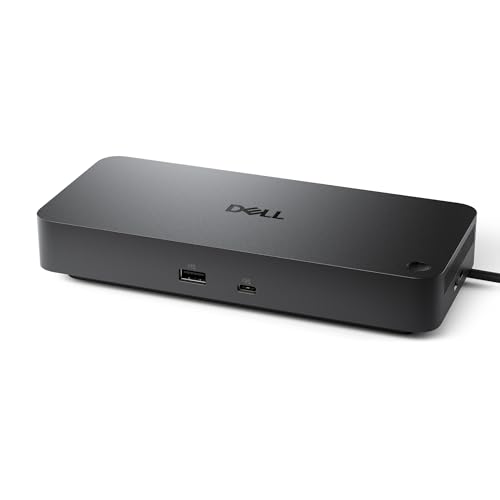
- Supports up to four high-resolution displays
- Up to 100W power delivery
- Three-year limited hardware warranty
Best For: Dell-focused offices and managed multi-monitor workstations
Best for Triple-Display Home Offices

- Drives up to 4K + 2K + 2K displays
- Six 10Gbps USB ports
- Includes 100W PD and 130W adapter
Best For: Productivity-focused Mac and Windows triple-monitor desks
Best for Dual-4K Productivity

- Supports two 4K monitors at 60Hz
- Six USB 3.0 ports and Gigabit Ethernet
- Accepts USB-C or USB 3.0 hosts
Best For: Office users building a dual-monitor productivity setup
Best All-Around Expansion

- 11 ports with DisplayPort, HDMI, Ethernet, audio, and card readers
- Up to 10Gbps data transfer and 85W pass-through charging
- Dual displays supported; macOS mirrors external screens
Best For: Versatile laptop connectivity and everyday dual-monitor setups
Best for Windows Triple Displays

- Two DisplayPort outputs plus HDMI for up to three Windows monitors
- Supports up to 8K at 30Hz or 4K at 144Hz with DP 1.4 and DSC
- Adds 2.5Gbps Ethernet, 10Gbps USB, and up to 85W charging
Best For: Windows multi-monitor workstations and high-refresh displays
Versatile Triple-Display Pick
WAVLINK 12-in-1 DisplayPort Dock

- Dual DP and HDMI support up to three 1080p displays
- 85W charging plus Ethernet, SD/TF, audio, and USB ports
- Broad compatibility, with macOS display limitations
Best For: Windows users who need three monitors and many connected peripherals
Compact Dual-DP Value

- Two DP outputs support up to 4K at 60Hz
- Adds HDMI, VGA, and 100W PD charging
- USB data ports are limited to USB 2.0 speeds
Best For: Users prioritizing dual DisplayPort connectivity on a compact dock
Flexible Four-Output Option

- Combines DP, dual HDMI, and VGA outputs
- Supports up to 87W laptop charging
- VGA connection reduces all displays to 1080p
Best For: Users combining modern and legacy monitors with a compatible USB-C laptop
Best for Dell-Centered Workplaces – Dell Pro WD25 Dock
The Dell Pro WD25 is a practical docking station with DisplayPort for business users who want broad compatibility, high-power USB-C charging, and a clean multi-monitor workspace. It supports up to four high-resolution displays and includes Ethernet, HDMI, USB-A, and USB-C connectivity.
Best For: Dell-focused offices, IT-managed workstations, and users who need quad-display support with up to 100W power delivery.
Pros:
- Supports up to four high-resolution displays.
- Delivers up to 100W to compatible Dell and non-Dell PCs.
- Works with Windows, Ubuntu, Red Hat Enterprise Linux, and ChromeOS versions listed by Dell.
- Includes a three-year limited hardware warranty with advanced exchange.
Cons:
- Its strongest management and compatibility advantages are aimed at business environments.
- Some operating-system support depends on the specific version.
The WD25 is a strong choice when reliable office expansion and enterprise manageability matter more than a compact travel design. Its flexible USB-C cable routing and sustainability features add practical value for permanent desks.
Best for Triple-Display Home Offices – WAVLINK DisplayLink Dock
This WAVLINK docking station with DisplayPort is designed for a one-cable desk setup, combining three-monitor output, 100W power delivery, fast USB connections, and Gigabit Ethernet. It can drive a 4K display plus two 2K displays at 60Hz when the host computer and software requirements are met.
Best For: Home offices, coding setups, stock dashboards, online learning, and mixed Mac-and-Windows workspaces needing up to three external monitors.
Pros:
- Supports up to 4K + 2K + 2K at 60Hz across three displays.
- Offers six USB ports rated for 10Gbps individual transfers.
- Provides 100W Power Delivery and includes a 130W power adapter.
- Compatible with many USB-C, USB4, and Thunderbolt 3/4 laptops.
Cons:
- MacBook M1 through M5 models require a DisplayLink driver.
- The USB-C host must support video output, and USB-A laptops are not supported.
- Not recommended for gaming or HDCP-protected 4K streaming.
With strong display and connectivity specifications, this WAVLINK model suits productivity-heavy desks. Buyers should confirm host video support and plan for DisplayLink software on compatible Macs before purchasing.
Best for Dual-4K Productivity – Plugable UD-6950Z Dock
The Plugable UD-6950Z is a versatile docking station with DisplayPort for users who want dual 4K monitor support, six USB 3.0 ports, Ethernet, and audio connectivity. Its DisplayLink design supports USB-C and USB 3.0 host connections, making it useful across a range of Windows, Mac, and ChromeOS computers.
Best For: Office productivity, web browsing, and dual-monitor workstations that do not require laptop charging from the dock.
Pros:
- Supports two 4K monitors at 60Hz through DisplayPort or HDMI.
- Works with USB-C and USB 3.0 host connections.
- Includes six USB 3.0 ports, Gigabit Ethernet, and an audio jack.
- Supports Windows, macOS with a driver, and ChromeOS.
Cons:
- Does not charge the connected host computer.
- Not designed for gaming or HDCP-protected streaming content.
- Linux is not supported according to the supplied compatibility notes.
This Plugable dock is a sensible productivity expansion option when dual 4K output matters more than power delivery. Its broad host-connection support is convenient, but users should budget for the laptop’s original charger.
Best for Feature-Rich Windows Setups – Selore 17-in-1 Dock
The Selore 17-in-1 is a feature-rich docking station with DisplayPort for Windows users who need triple-monitor output, high-speed USB, card readers, Ethernet, and laptop charging from one USB-C connection. It combines three HDMI ports with two DisplayPort outputs in a vertical workstation-oriented design.
Best For: Windows multitasking, creative workflows, data analysis, and desks that need display expansion plus SD and microSD card access.
Pros:
- Supports three extended displays on Windows through specified MST combinations.
- Offers three 4K HDMI ports and two DisplayPort outputs rated up to 8K at 30Hz.
- Includes 10Gbps and 5Gbps USB ports, Gigabit Ethernet, and SD/microSD readers.
- Provides up to approximately 85W laptop charging from 100W PD input.
Cons:
- On macOS, the supplied notes indicate mirror mode only rather than three independent displays.
- A charger of 87W or higher is required, and the charger is sold separately.
- Display resolution varies by port combination, with the third Windows display limited to 4K at 30Hz in the listed setup.
The Selore stands out for users who want to consolidate monitors, storage cards, networking, and peripherals in one dock. It is most compelling for Windows systems; Mac buyers should carefully review the display limitations.
Best All-Around Expansion – Anker 11-in-1 USB-C Dock
If you need a docking station with DisplayPort for everyday work, the Anker 11-in-1 hub combines dual-display support with a broad selection of connectivity. It includes DisplayPort, HDMI, Ethernet, audio, card readers, and both high-speed and standard USB ports in a compact aluminum enclosure.
Best For: Laptop users who want versatile connectivity and dual-monitor support in a compact dock.
Pros:
- Offers 11 ports, including 4K DisplayPort, 4K HDMI, Ethernet, AUX, and SD/microSD slots.
- Supports up to 10Gbps transfers through one USB-C and one USB-A data port.
- Provides up to 85W pass-through charging when paired with a suitable charger.
- Works with compatible USB-C, USB4, and Thunderbolt systems across Windows, macOS, and ChromeOS.
Cons:
- Dual external displays mirror the same image on macOS.
- A charger is required for pass-through charging and is not included.
- Does not support Linux or display output through USB-C ports.
The Anker is a practical choice when port variety matters as much as DisplayPort support. Confirm that your laptop supports DisplayPort Alt Mode and note the different maximum display resolutions for DP 1.2 and DP 1.4 systems.
Best for Windows Triple Displays – WAVLINK Dual-DisplayPort Dock
For Windows users seeking a docking station with DisplayPort and high-refresh-rate support, the WAVLINK 12-in-1 dock offers two DisplayPort outputs, HDMI, fast USB ports, 2.5Gbps Ethernet, and SD/TF card slots. It is designed for expansive desktop setups, provided the host laptop meets the required video specifications.
Best For: Windows laptops driving multiple monitors, high-refresh displays, and fast wired networking.
Pros:
- Includes dual DisplayPort outputs, HDMI, and support for up to three monitors on Windows.
- Can support single-display output up to 8K at 30Hz or 4K at 144Hz under DP 1.4 with DSC.
- Combines 10Gbps USB-A and USB-C ports with 2.5Gbps Ethernet.
- Supports up to 85W laptop charging from a 100W PD input.
Cons:
- Not compatible with macOS.
- Full resolution and refresh-rate claims require DP 1.4 and DSC support.
- The charger is not included, and the dock cannot charge laptops requiring more than 85W.
The WAVLINK stands out for Windows-focused multi-monitor users who prioritize DisplayPort bandwidth and faster Ethernet. Check your laptop’s DP 1.4, DSC, charging, and video-output support before buying.
Best for Flexible Monitor Setups – Selore Triple-Display Dock
This Selore docking station with DisplayPort is suited to users who need several video-output options. Its DisplayPort, two HDMI ports, and VGA output can support up to three independent 4K displays on compatible Windows systems, while a dedicated monitor-control button adds convenient display management.
Best For: Windows users building flexible multi-monitor workspaces with HDMI, DisplayPort, or VGA monitors.
Pros:
- Provides DisplayPort, two HDMI ports, and VGA for broad monitor and projector compatibility.
- Supports one 8K DisplayPort display or three independent 4K displays on compatible Windows systems.
- Includes a monitor-control button for quick screen control and display-mode changes on Windows.
- Offers 5Gbps USB-A/C data ports, Gigabit Ethernet, and up to 85W laptop charging.
Cons:
- macOS mirrors the same content across connected external monitors.
- Video output requires a full-featured USB-C or Thunderbolt port with DisplayPort Alt Mode.
- A charger is needed for power delivery and is not included.
The Selore is a strong fit when your monitor collection uses mixed connections or when you want a physical display-control button. Windows users should verify DP 1.4 support for the highest multi-monitor resolutions, while Mac users should expect mirrored output.
Versatile Triple-Display Pick – WAVLINK 12-in-1 DisplayPort Dock
If you need a docking station with DisplayPort for a busy Windows workstation, the WAVLINK 12-in-1 model combines dual DisplayPort outputs with HDMI, charging, networking, storage-card slots, and several USB connections. It can support one 4K display or up to three 1080p displays at 60Hz under DP 1.4.
Best For: Windows users building a triple-monitor desk setup with extensive peripheral connectivity.
Pros:
- Dual DisplayPort plus HDMI support one 4K display or three 1080p displays at 60Hz.
- Includes 85W laptop charging, Gigabit Ethernet, SD/TF slots, audio/mic, and four USB-A ports.
- Broad operating-system compatibility and a two-year product guarantee noted by the manufacturer.
Cons:
- Charger and charging cable are not included.
- Host USB-C port must support video output and charging.
- On macOS, the three extended displays must show the same image.
This is the most feature-rich option here for Windows productivity users who need three screens and a wide range of ports. Confirm your laptop’s USB-C capabilities before buying.
Compact Dual-DP Value – MOKiN 8-in-1 DisplayPort Dock
This MOKiN model is a straightforward docking station with DisplayPort for connecting up to two DP monitors, along with HDMI or VGA. Its 100W PD input, basic USB connectivity, and compact eight-port layout suit laptop users who want multiple display options without a larger desktop dock.
Best For: Laptop users who need dual DisplayPort outputs and flexible monitor compatibility.
Pros:
- Provides two DisplayPort outputs rated up to 4K at 60Hz, plus HDMI and VGA.
- 100W USB-C PD charging port supports fast laptop charging.
- Works with compatible full-featured USB-C laptops from Dell, HP, and Lenovo.
Cons:
- USB-C and USB-A data ports are USB 2.0, limited to up to 480Mbps.
- MacBook connections support mirror mode rather than extended mode.
- Requires a full-featured USB-C port supporting display, charging, and data.
The MOKiN is a practical choice when dual DisplayPort is the priority and high-speed USB data is not essential. Check both your laptop port specifications and your preferred monitor arrangement first.
Flexible Four-Output Option – HoDo 8-in-1 DisplayPort Dock
The HoDo is a docking station with DisplayPort designed for users who want several video-output choices in one adapter. It combines one 4K DisplayPort output with dual HDMI and VGA, while also offering up to 100W input and 87W laptop charging for compatible USB-C systems.
Best For: Compatible laptop users who need DP, HDMI, and VGA flexibility for multi-monitor setups.
Pros:
- Offers DisplayPort, two HDMI ports, and VGA for flexible monitor connections.
- Supports up to 4K output through the DP port and multi-display configurations.
- Provides up to 87W laptop output and three USB 2.0 ports for keyboards, mice, and similar devices.
Cons:
- VGA use limits all connected displays to 1080p.
- USB ports transfer at up to 480Mbps.
- Power adapter is not included, and the laptop must support DisplayPort Alternate Mode.
This adapter stands out for legacy-monitor flexibility, especially when VGA is still part of the setup. Its display and charging limits make checking laptop specifications and monitor requirements particularly important.
How We Picked the Best Docking Station with Displayport
We focused on docks that offer at least one DisplayPort output and considered the features that matter most in everyday workstation use: display support, port selection, host connectivity, charging, operating-system compatibility, and ease of setup. The lineup includes USB-C hubs, USB 3.0 and USB-C docking stations, DisplayLink-based models, and higher-output docks designed for multiple monitors.
Display specifications can vary by computer, cable, operating system, and connection mode, so treat advertised resolutions as maximum capabilities rather than guaranteed results for every setup. A laptop’s USB-C port must also support video output for many USB-C docks to drive an external display.
Quick Comparison
| Best For | What to Look For | Typical Advantage |
|---|---|---|
| Single-monitor desks | DisplayPort, HDMI, USB-A, and power delivery | Simple expansion with fewer compatibility concerns |
| Dual-monitor workstations | Two video outputs and sufficient bandwidth | More screen space for productivity |
| Triple-monitor setups | DisplayLink or a dock explicitly rated for three displays | Maximum multitasking flexibility |
| Travel and hot desks | Compact design, USB-C host connection, and pass-through charging | Easy portability |
Key Buying Factors for a Docking Station with Displayport
Display Compatibility
Count your monitors and check their resolution and refresh-rate requirements. A DisplayPort connection is often useful for high-resolution office monitors, while HDMI may be more convenient for TVs and general-purpose displays. For three-monitor setups, verify whether the dock uses DisplayLink and whether driver installation is required.
Host Port and Operating System
USB-C does not automatically mean video support. Confirm that your laptop supports DisplayPort Alt Mode, Thunderbolt, or USB4 as required by the dock. DisplayLink models can provide additional display outputs through USB, but they typically require software and may behave differently with protected video content or certain operating systems.
Charging and Connectivity
Choose a dock with enough power delivery for your laptop. A 100W-rated model may be preferable for larger productivity notebooks, while lower-wattage hubs can suit ultraportables. Also check for the ports you actually use, such as Ethernet, USB-A, USB-C data, audio, SD cards, and fast USB standards.
Bandwidth and Setup
Multiple high-resolution monitors, external drives, and fast networking share available bandwidth. Look for clear specifications and use certified cables where possible. A dock with a dedicated power adapter is generally better for a permanent desk, while bus-powered hubs are more convenient for travel.
Who Should Buy Which Docking Station with Displayport?
Choose a compact USB-C hub if you need occasional monitor access and a few extra peripherals. A dual-display dock is a better fit for a home office, finance workstation, or developer desk that relies on side-by-side screens. Select a triple-monitor DisplayLink or purpose-built multi-display dock when three screens are essential and you are comfortable installing drivers. For demanding laptops, prioritize reliable power delivery and broad compatibility over the largest possible port count.